
If you’re deep into the Makita XGT 40V ecosystem, you already know the pain. A genuine BL4040 has an RRP of $269, and even on sale you’re looking at around $200. If you’ve got a mower, blower, and a few power tools to feed, you’re sinking serious money into cells wrapped in teal plastic.
I recently built 4 XGT 40V packs (and 6 of the 18V packs while I was at it). Each 40V battery cost me about $100 in parts. Across 10 batteries the numbers add up fast, and more importantly, I now know exactly what’s inside them and can rebuild them when the cells eventually age out.
Here’s how to do it, including the one mistake that’ll waste your time if you don’t know about it upfront.
What You’ll Need
Parts
- XGT 40V shell with BMS motherboard from AliExpress: get the full kit option that includes the shell, nickel connectors, and BMS board. AliExpress listing here.
- 10x Samsung 40T 21700 4000mAh 35A cells: I sourced mine from caprouge.com.au at $7.65 each. You can get cheaper cells from AliExpress, which would roughly halve your cell cost, but I went with a reputable supplier. Cheap cells can have inflated capacity ratings, inconsistent internal resistance, or be old stock that’s been sitting in a warehouse degrading. For something that’s going to be pushed hard on a job site, that’s not a risk worth taking.
- Fish paper for insulating spot welds: AliExpress listing.
- Potting compound (optional but recommended for rough use): protects the BMS board from dust and short circuits. Amazon AU listing.
Tools
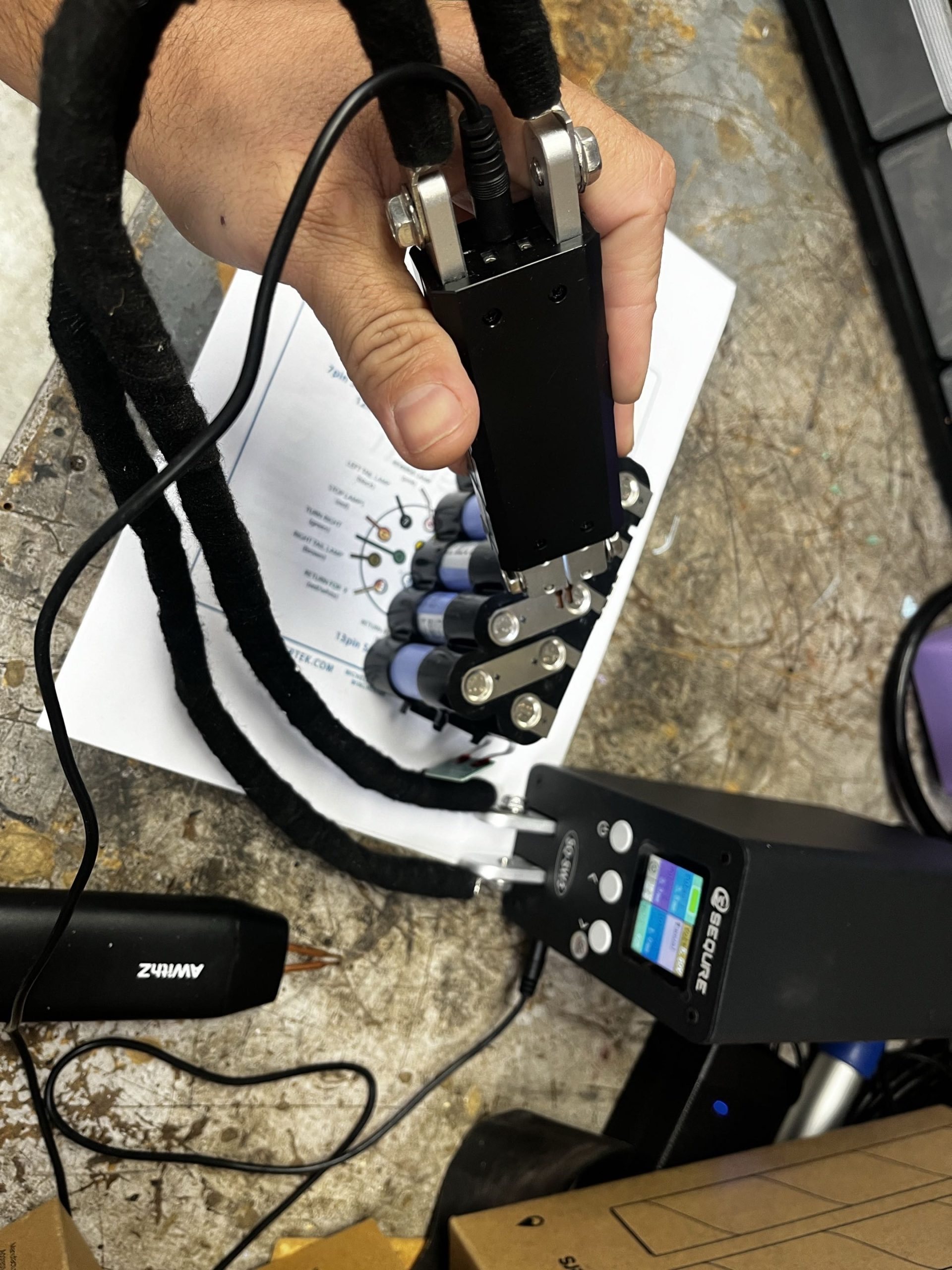
- Spot welder: This is where I have opinions. I started with a $40 cheapie off AliExpress. It worked… briefly. Overheated quickly, inconsistent power output, unreliable welds. If you’re building more than one or two batteries, spend the money on something decent. I ended up with the Sequre SW3 (~$400) – consistent welds, good power, built to last. If you’re into electronics as a hobby, a quality spot welder earns its keep well beyond battery builds: repairing laptop battery packs, building custom e-bike batteries, attaching tabs to solar cells, or even jewellery work. It’s a tool you’ll reach for more than you’d expect.
- Soldering iron with a wide wedge/spade tip: you need good heat distribution for the connections on the BMS board. A fine-point tip won’t cut it here.
- Multimeter
- Makita DC40RA charger (or compatible XGT charger)
Before You Start: Why This Isn’t Like Building 18V Batteries
If you’ve built Makita 18V LXT packs before, you might think this is the same deal. It’s not.
The 18V LXT system uses dumb voltage-based charging. The charger reads the pack voltage, charges accordingly, done. Simple.
The XGT 40V system is completely different. The charger has a digital conversation with the battery’s BMS via a serial protocol (UART, 9600 baud on the TR pin). It asks for state-of-charge, cell voltages, temperature data. The BMS has to respond correctly, or the charger refuses to charge. If you want to understand exactly what’s happening at the protocol level, Malvineous has done excellent reverse-engineering work on the XGT serial communication: makita-xgt-serial on GitHub. The Open Battery Information project is also worth a look.
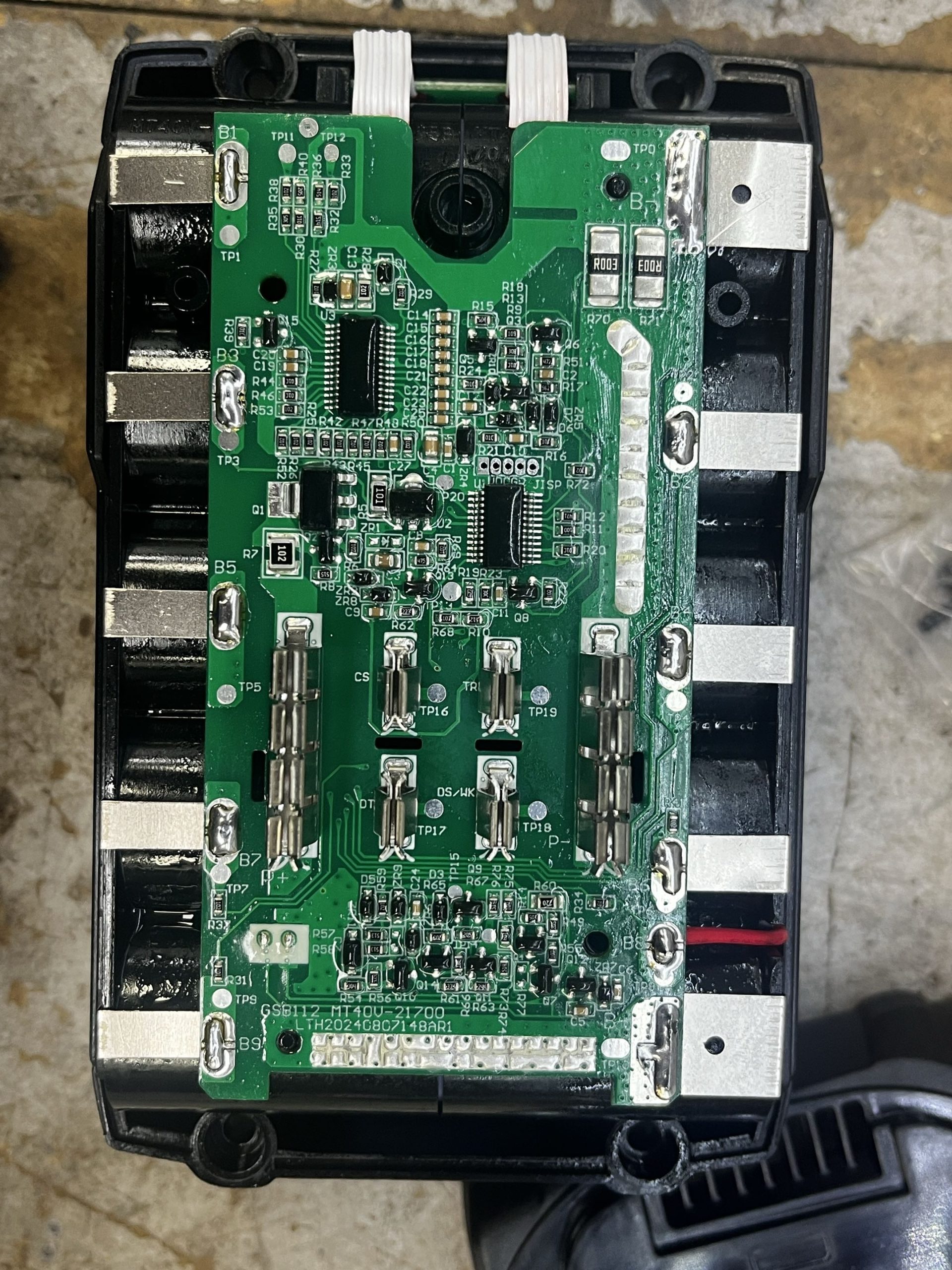
This matters because not all aftermarket BMS boards implement this protocol properly. This is the single most important thing in this guide: if your BMS firmware doesn’t speak the charger’s language, your battery won’t charge. Full stop. The charger will flash blue for half a second, go straight to green (“complete”), and your pack will sit there at whatever voltage the cells arrived at.
I built two packs with BMS boards from one supplier. Both exhibited identical behaviour: instant “charge complete” with cells sitting at 3.45V. Different cells, different welds, same problem. The BMS was the issue.
The fix was sourcing the BMS from a different supplier. The listing I’ve linked above is the one that works. Same form factor, but firmware that correctly implements the Makita serial handshake.
The Build
Step 1: Pre-charge and test your cells
Fresh cells ship at storage voltage (around 3.3-3.5V). Before assembly, charge each cell individually to 3.6-3.7V using a bench charger. This gives you a nominal pack voltage the charger expects to see, and lets you verify every cell is healthy before they’re welded in permanently.
Check internal resistance if your charger supports it. Any cell that’s significantly different from the rest: bin it. Mismatched cells in a series pack will cause problems down the line.
Step 2: Cell orientation and placement
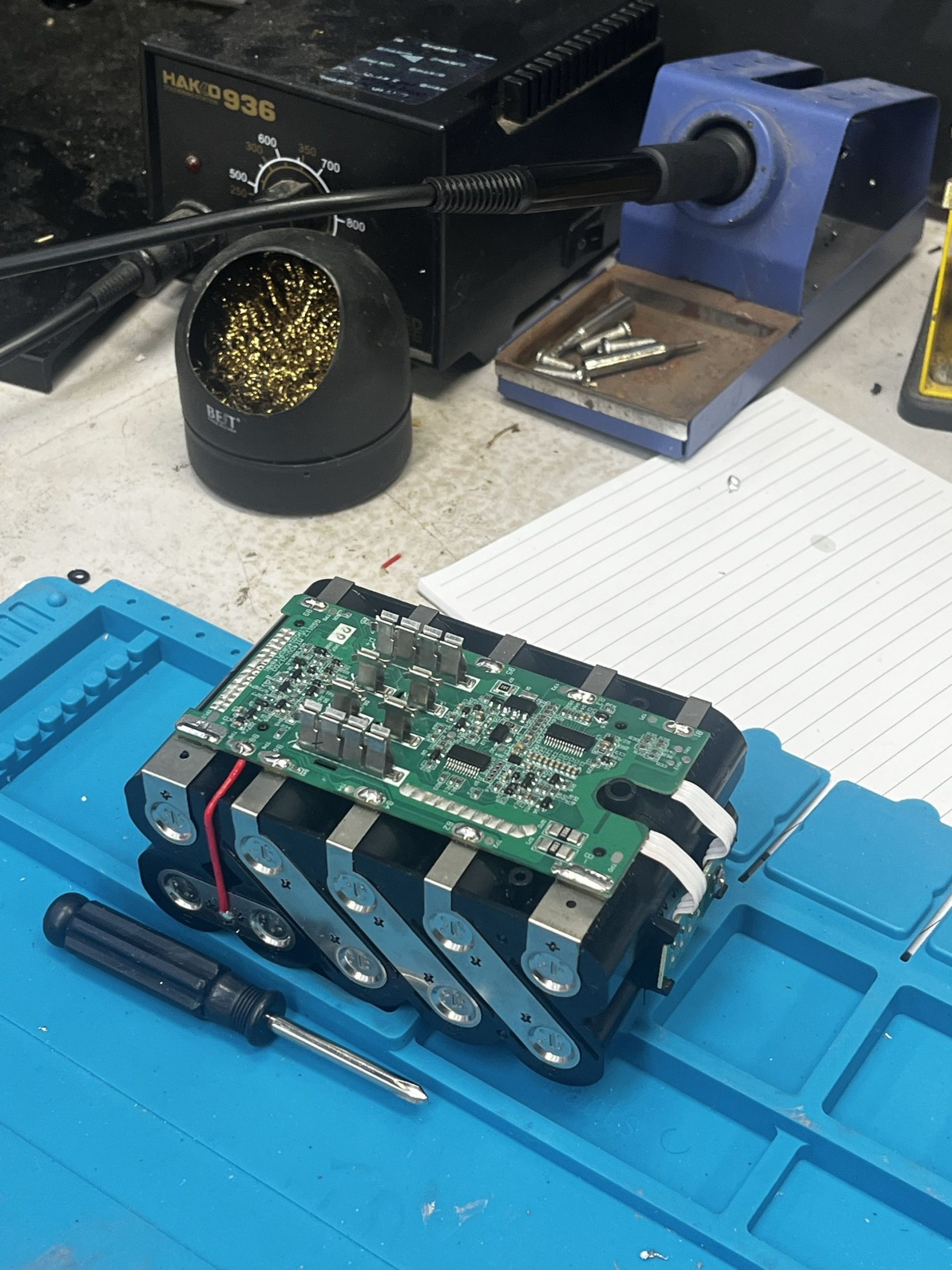
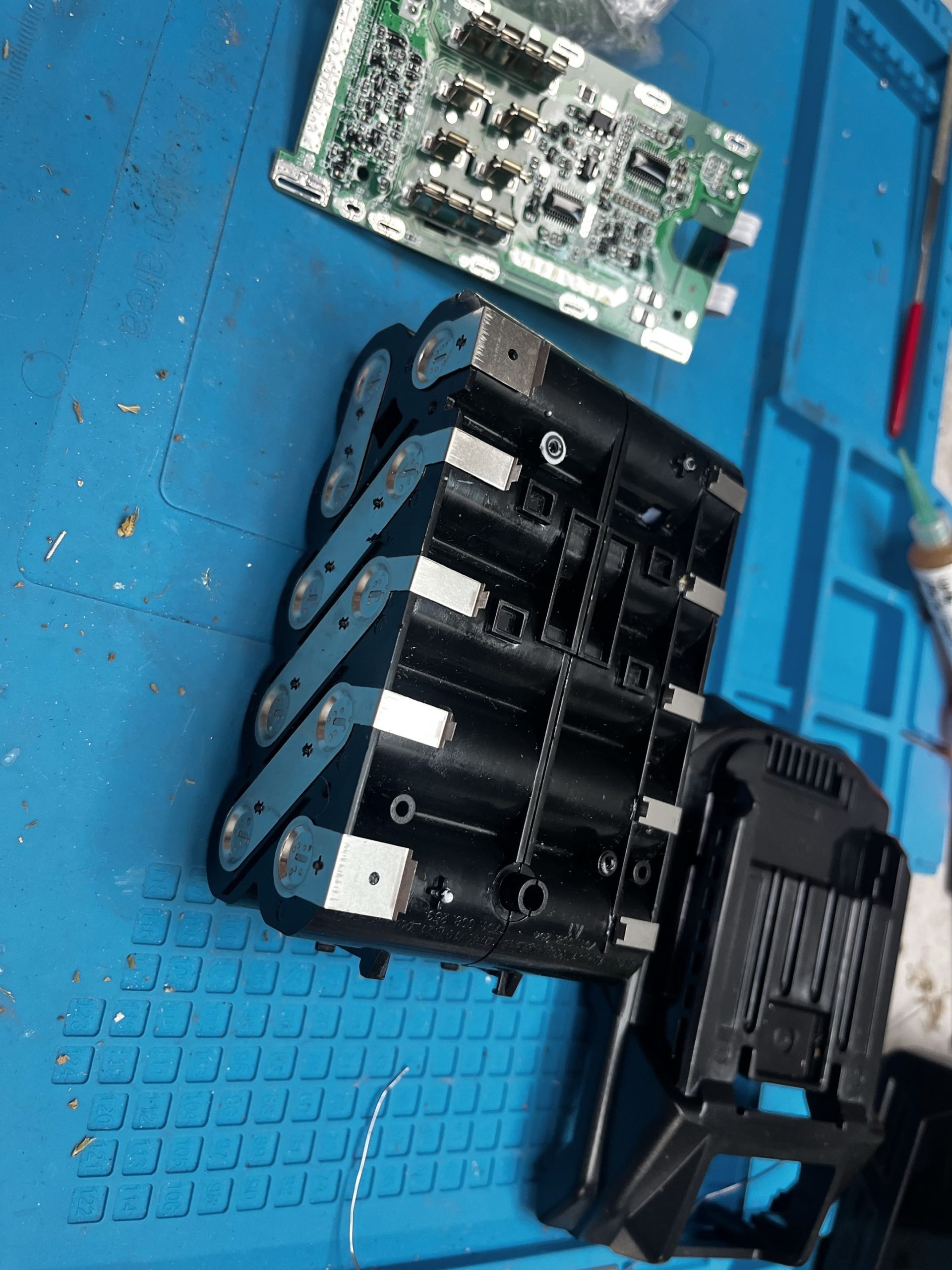
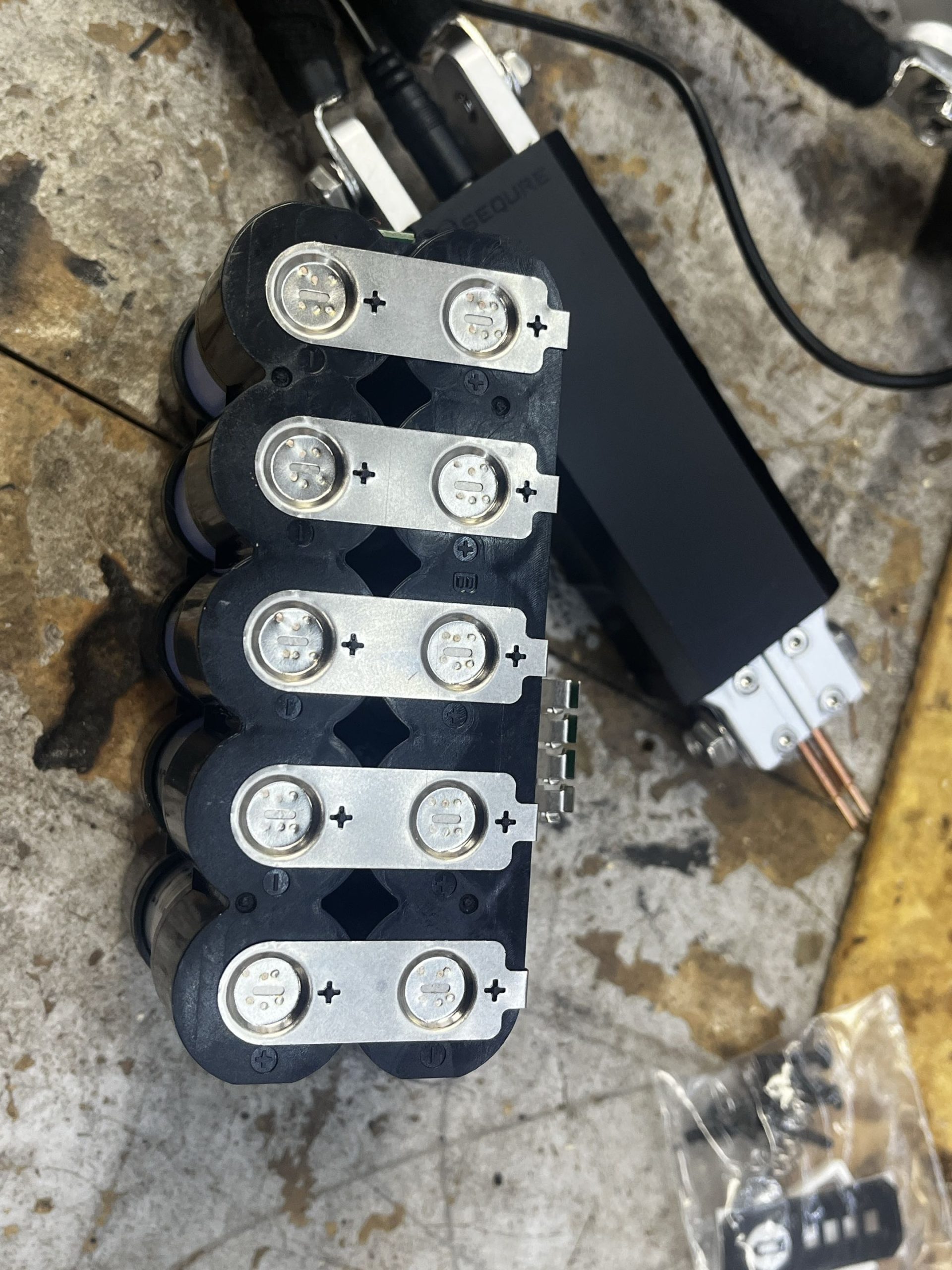
The XGT 40V pack is a 10S1P configuration: ten 21700 cells in series. They sit in two rows of five in a serpentine (snaking) pattern.
I’m not going to map out the exact terminal orientation here because it may depend on your specific shell. The AliExpress listing for your shell/BMS kit will show you which way the cells go and where the nickel strips connect. Follow their diagram: the pre-installed contact pads in the shell make it fairly obvious which terminal faces which direction.
Step 3: Spot welding
Important: never solder directly onto battery cell terminals. The sustained heat from a soldering iron can damage the cells internally. Always use a spot welder for cell-to-strip connections. Spot welding delivers a brief, intense pulse that fuses the metal without heat-soaking the cell.
This is where your spot welder quality matters. You want clean, consistent welds with good contact area. A few tips:
- Clean the cell terminals with isopropyl before welding: any oxidation or oil reduces weld quality
- Do test welds on scrap nickel strip first to dial in your power settings
- Two or three spot welds per connection: don’t rely on a single point of contact
- Check each weld by trying to peel the strip. If it comes off easily, bump up the power or add another weld
After welding, apply fish paper over each connection. This insulates the welds and prevents any chance of a short circuit from the nickel strip touching something it shouldn’t.
Step 4: The charge wire (40V specific)
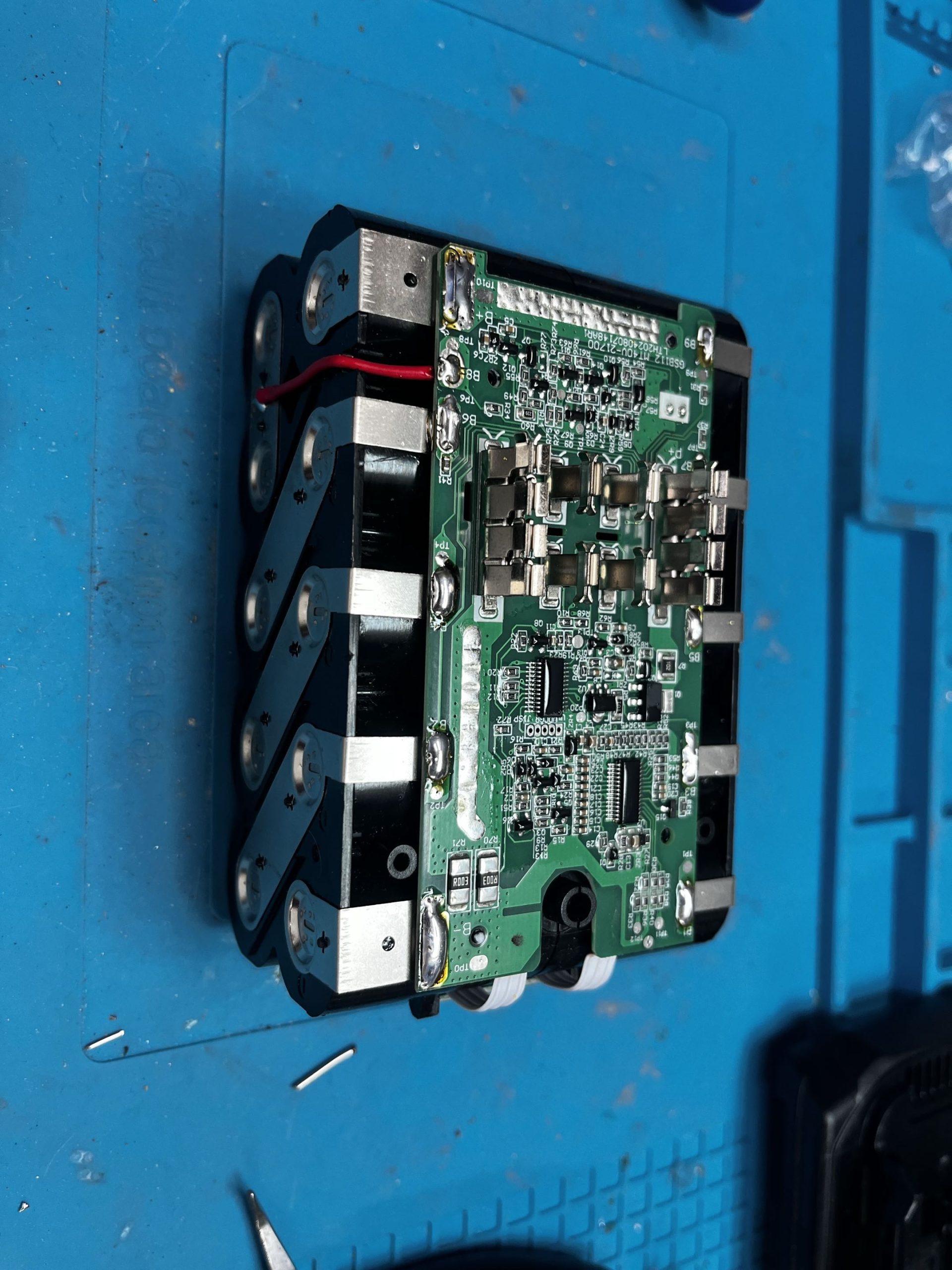
This is an easy one to miss. The 40V pack requires an extra wire soldered from the BMS board to one of the nickel plates (which is welded to the cells). Without this wire, the battery won’t charge. Your BMS kit should indicate where this connects: it’s a single solder joint but it’s critical.
Use your wedge tip here for good heat transfer and a solid joint.
Step 5: Board protection (optional but recommended)
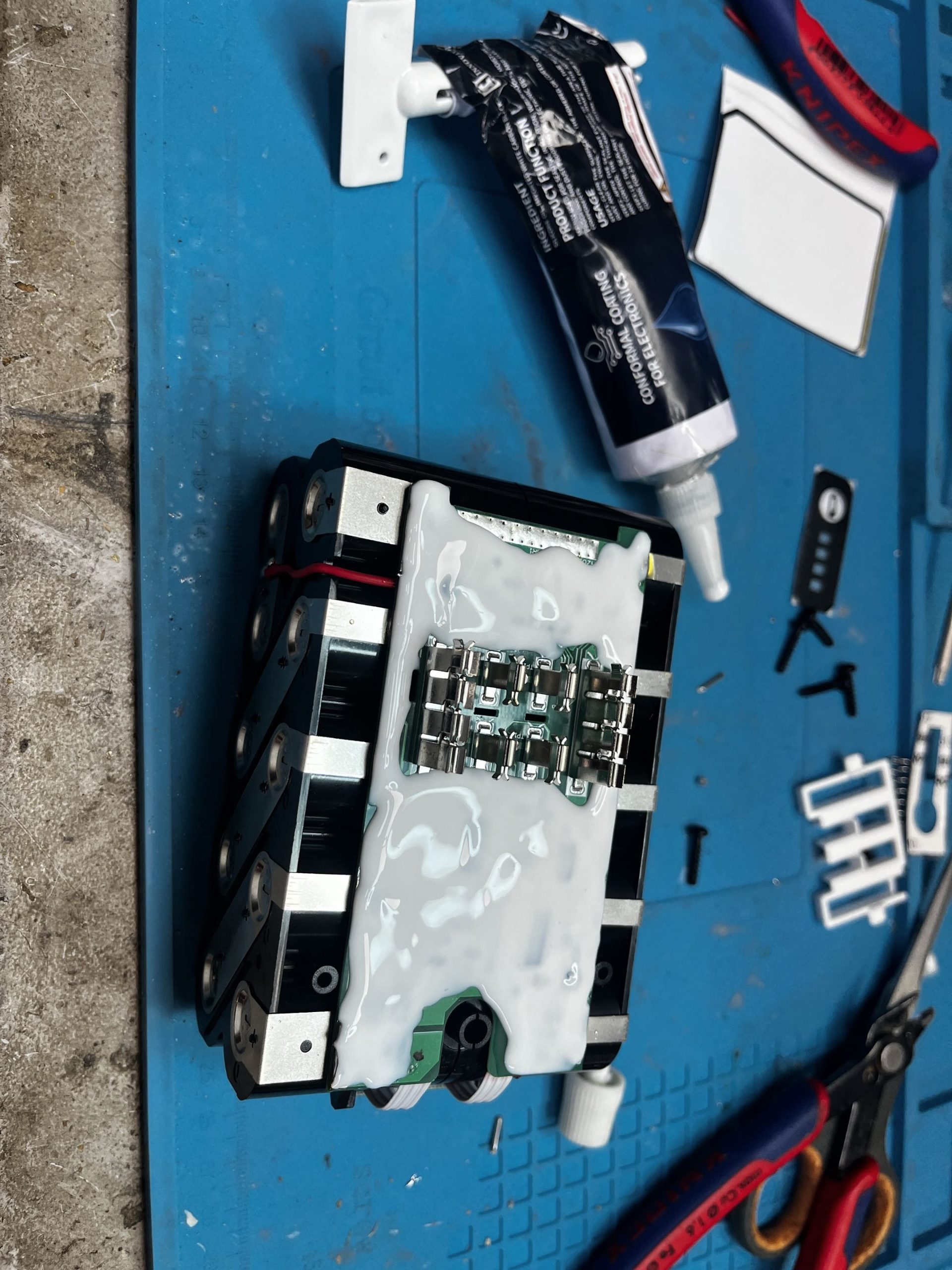
If these batteries are going to see rough use (bouncing around in a ute, copping dust on a job site) apply potting compound over the BMS board. This seals it against dust ingress and vibration, and prevents any loose debris from bridging connections and causing a short.
Let it cure fully before closing the shell.
Step 6: Assembly and first charge
Close up the shell and confirm the battery gauge button responds.
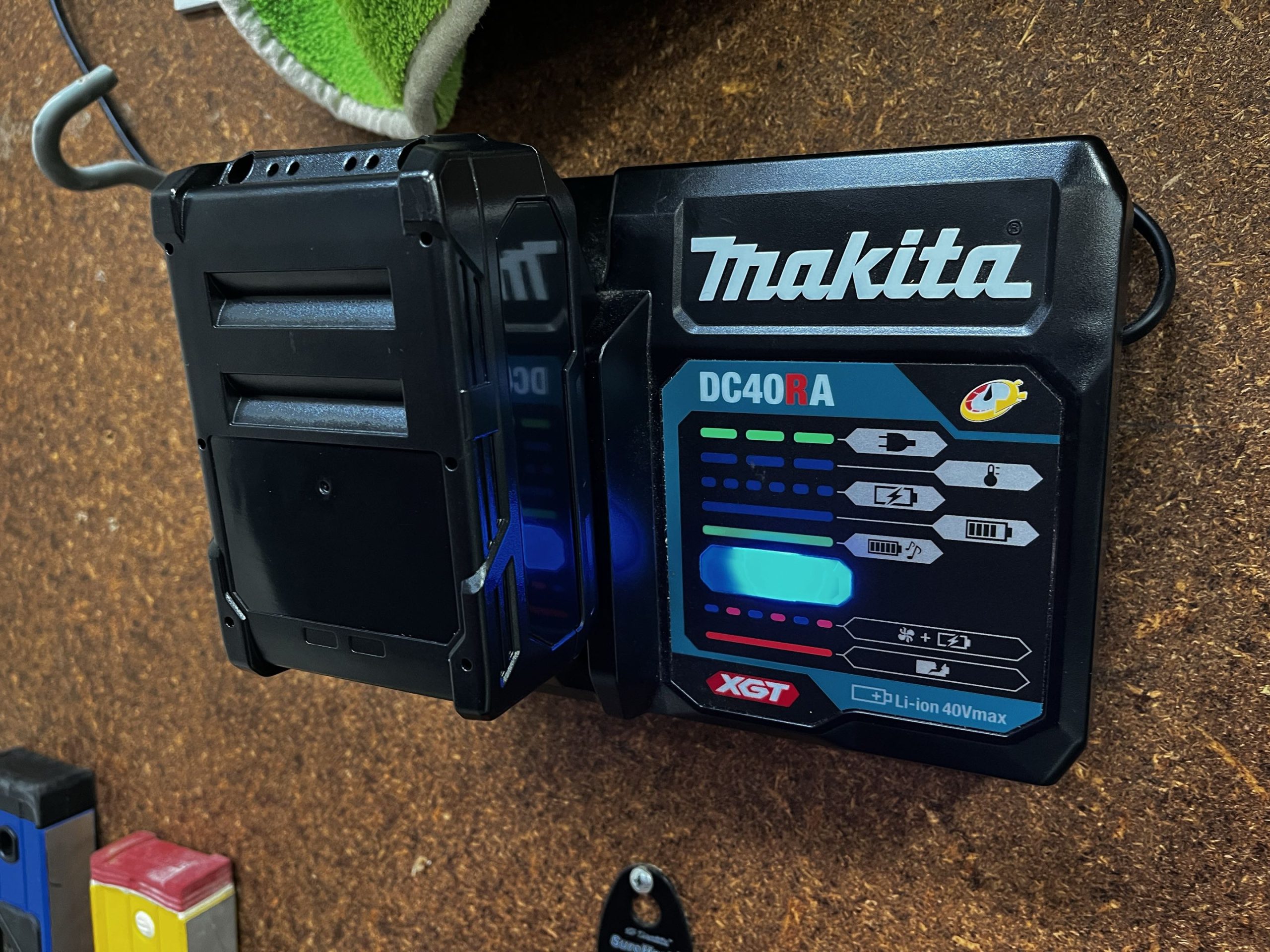
Pop it on the DC40RA charger. You’re looking for:
- Blue flash: charger initiating communication (handshake)
- Solid blue: actual charging in progress
- Solid green: charge complete
If you get blue flash straight to green with the cells clearly not full, your BMS isn’t communicating properly. See the troubleshooting section below.
Cost Breakdown
40V (BL4040 equivalent, 10S1P, 21700 cells)
- Genuine: $269 RRP / ~$200 on sale
- DIY (reputable cells): ~$100
- DIY (AliExpress cells): ~$50-60
18V (BL1860 equivalent, 5S2P, 18650 cells)
- Genuine 6Ah: $209 RRP / ~$150 on sale
- DIY (reputable cells): ~$90
- DIY (AliExpress cells): ~$50-60
18V build used 10x Samsung 30Q 18650 3000mAh 15A cells at $7.23 each from caprouge.com.au.
Across all 10 batteries (6x 18V + 4x 40V), I spent roughly $940 in parts. Equivalent genuine batteries would’ve cost well over $2,000 at RRP. The real value shows up over time though: when cells start degrading in 3-4 years, you crack the shell open, swap in fresh cells for $50-75, and you’ve got a like-new battery.
Side note: if you’ve got dead genuine Makita batteries lying around, you can unscrew them and potentially reuse the OEM BMS board in a rebuild. I haven’t personally tested this approach, so your mileage may vary, but the BMS from a genuine pack should speak the charger protocol correctly by definition. Worth experimenting with if you’ve got a dead pack gathering dust.
Real-World Testing
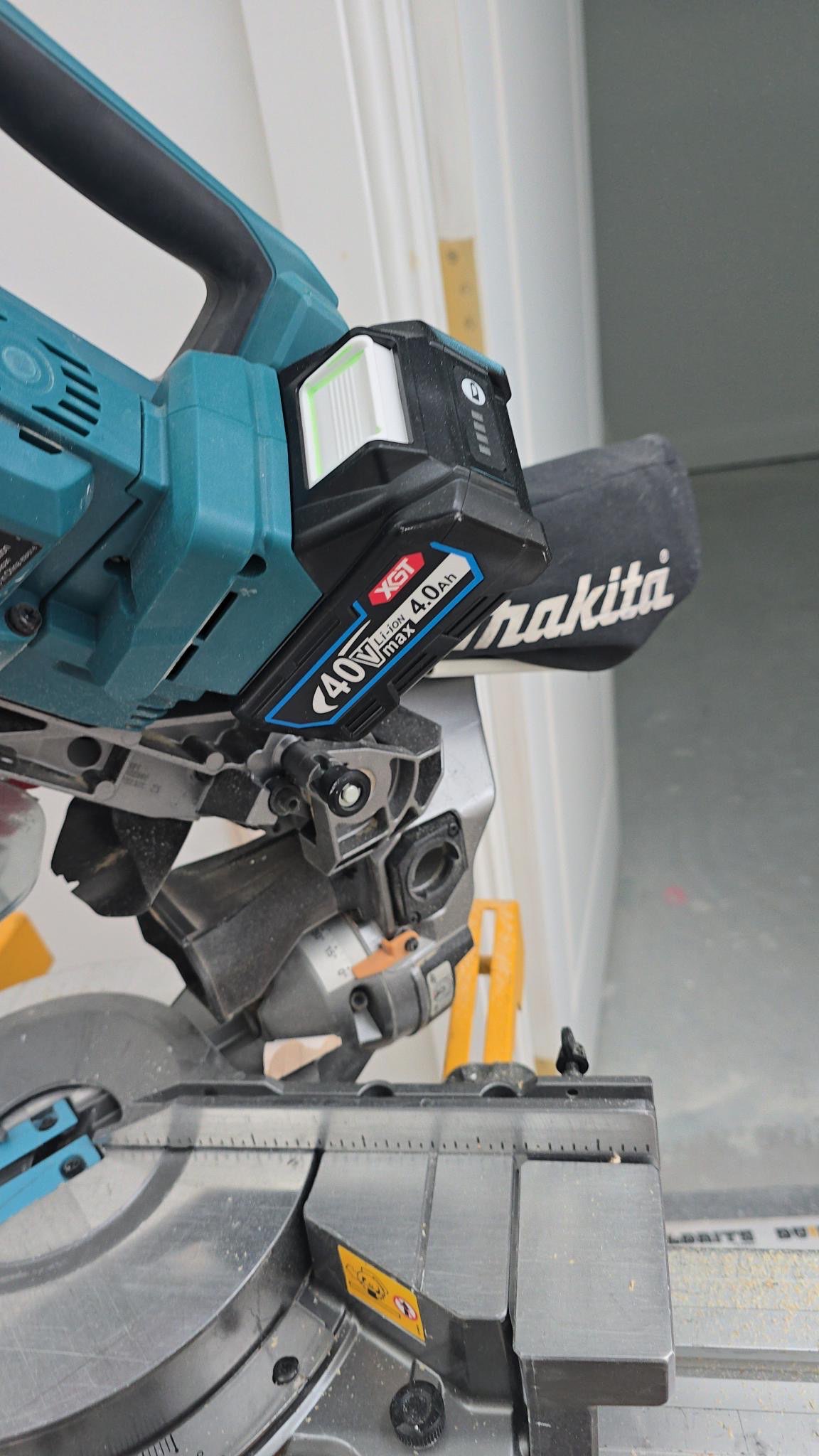
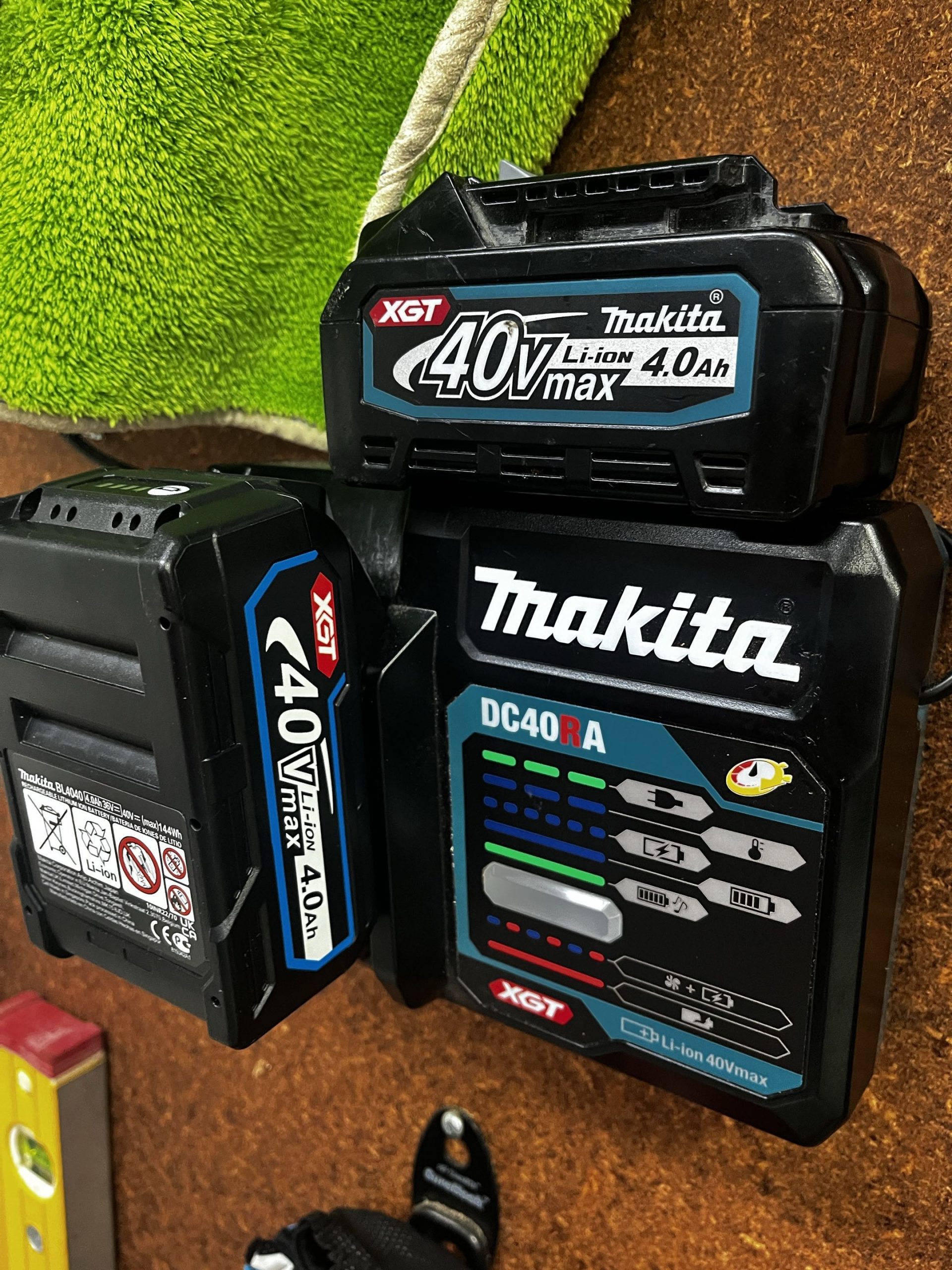
These aren’t shelf queens. My packs have been tested by a builder on actual job sites, heavy daily use across multiple tools including a drop saw. No issues, no error codes, full power output. They perform identically to the genuine batteries.

Troubleshooting
Charger flashes blue then immediately goes solid green
Your BMS firmware isn’t properly implementing the Makita XGT serial protocol. The charger initiates communication, gets an incomplete or incorrect response, and decides the battery is “full.” You need a different BMS board. The listing I linked above works: try that supplier. If you want to dig into exactly what the charger is saying to the BMS (and what the BMS is failing to say back), the protocol has been reverse-engineered: makita-xgt-serial on GitHub.
Battery gauge shows low bars but won’t charge
Same root cause as above. The gauge LEDs are driven by the BMS reading cell voltage directly (that’s working), but the charger communication is failing.
Cells at different voltages after charging
Your BMS balancing may be slow, or you’ve got a weak cell. Check individual cell voltages through the balance leads. If one cell is consistently lower, replace it.
Tips and Lessons Learned
- Don’t cheap out on the spot welder if you’re doing more than a couple of builds. The $40 ones are fine for one battery. By the third they’re overheating and giving you inconsistent welds. A quality spot welder pays for itself in time saved and reliable joints.
- Never solder directly onto cell terminals. The heat will damage the cells. Always spot weld. Save the soldering iron for BMS connections and the charge wire.
- Use a wedge/spade soldering tip for the BMS connections. You need good heat distribution across the pads, and a fine-point tip won’t transfer enough heat for a clean joint.
- Pre-charge cells before assembly. Gives the pack a proper starting voltage and eliminates one variable if things don’t work.
- Fish paper every connection. Takes two minutes, prevents shorts that could ruin your day.
- The BMS supplier matters more than anything else. Two identical-looking boards can have completely different firmware. If one doesn’t work, try another supplier before assuming your build is faulty.
- These packs work. Mine have seen heavy daily use on real job sites. No issues.
Resources
- Makita XGT serial protocol reverse-engineering (GitHub)
- Open Battery Information project (GitHub)
- Caprouge (reputable Australian cell supplier)
- Working BMS + shell kit (AliExpress)
- Sequre SW3 spot welder